From messy inbox to actionable board, with one AI skill
Maintaining and developing a project is not only about building things. A significant portion of time is spent triaging issues, feature requests, and user questions. This is also the case for FeedFlow. I constantly receive feedback from different sources:
- GitHub issues, given that the project is open source
- Support emails
- Crash reporting: Sentry and Firebase Crashlytics
- Reviews on the stores: Play Store, App Store
From every notification, I need to determine what’s a real issue, what’s already fixed, what makes sense to add to the roadmap, etc.
Handling this stream of information can be time-consuming, but nowadays we can use AI to help us with the process. AI agents are not only useful for coding; they can also access the codebase, the git history, the product decisions, and the product taste. This combination of things is what makes triaging delegable.
In this article, I want to share the setup I have for FeedFlow to triage incoming feedback, categorize it, and transform it into tickets with actionable information that can be picked up later, either for implementing the issue or for responding to the user.
The setup is tailored to my usage and the tools I use, but the concepts are transferable to any project and any combination of tooling. What I want to surface here is the idea and the concepts that can be borrowed to ease the process.
The current manual setup
Before getting into the automation part, I want to introduce a bit of the setup that I have.
All the notifications regarding FeedFlow usually arrive via email, either as support emails users send to give feedback, raise issues, etc., or as notifications from services like GitHub, Firebase, Sentry, etc.
The second piece of my setup is Obsidian, my second brain. Here I keep a board with all the issues, the ideas, basically the roadmap of FeedFlow. I use the Obsidian Kanban Plugin and I have different columns for all the work that I’m doing.
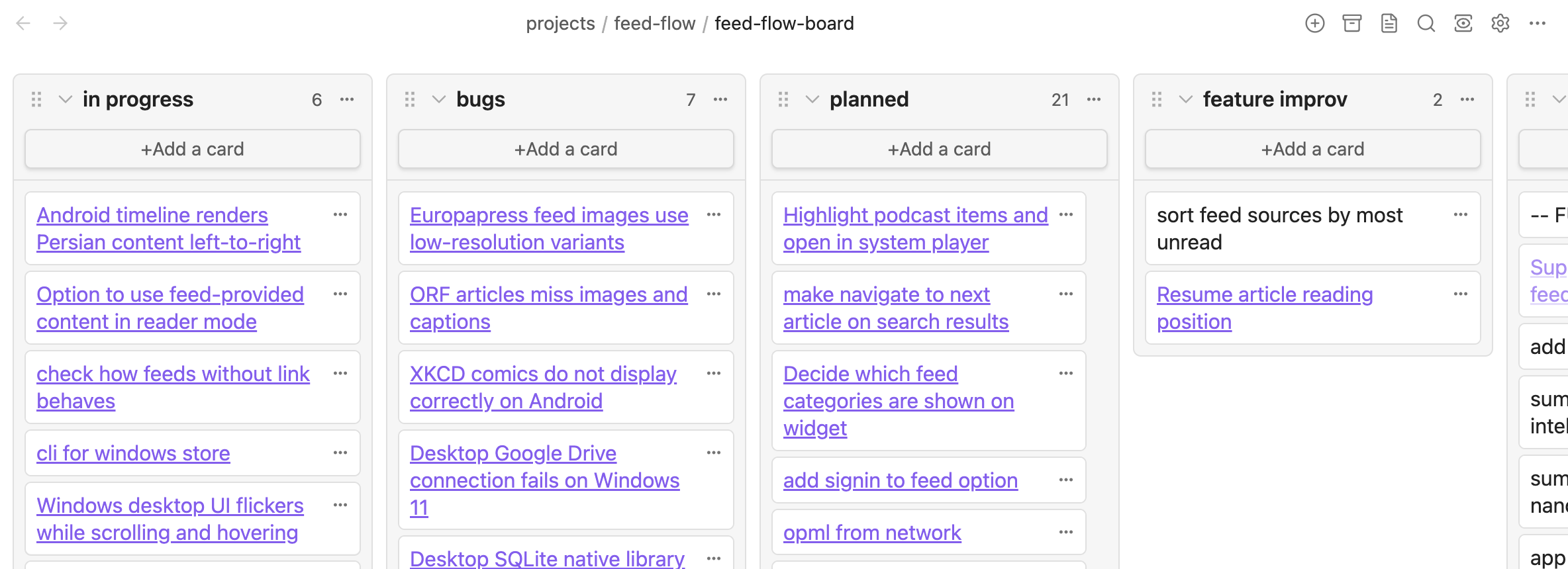
The FeedFlow Kanban board in Obsidian.
Usually after reading an email, I decide if there’s any actionable thing out of the email, and if so, I gather all the possible information I can, and I create a card and a note in the Kanban, so when I have some capacity to do some work on FeedFlow, I can just open Obsidian and start doing stuff. This judgment and information gathering is a process that I repeat dozens of times.
Setting up the automation
Before actually building a triaging system, since the emails are arriving in different accounts, to make things easier I decided to have all the messages into the same dedicated Gmail inbox. This is not only for convenience; I also didn’t want to give an AI agent access to multiple email accounts I have, so I can limit the risk of mistakes and leaks.
So I have this inbox where all messages regarding FeedFlow are forwarded: I simply set up filters with automatic forwarding in my inboxes to redirect the email to the chosen inbox.
To transform the emails into actionable cards in Obsidian, I’ve created a dedicated skill that can be triggered on demand.
The inbox is accessed using gws, the Google Workspace CLI. Every email is checked, and after analysis, a dedicated (Gmail) label (FeedFlow/Triaged) is added to indicate that the message has already been analyzed and can be skipped in a future run.
The skill is, at its core, a Markdown file: it starts with a frontmatter that contains the name and the description, and everything else is the actual content that contains all the instructions and the dedicated information on how to deal with the emails that I usually receive, what the process is, and all the required information needed to run the thing.
The description acts as a trigger to let the AI assistant know when to load the skill at the appropriate moment:
---
name: feedflow-issue-triage
description: Triage FeedFlow issue-related Gmail messages into the FeedFlow Obsidian board and notes vault. Use when reviewing FeedFlow emails from Gmail, classifying them as bugs, feature improv, or new features, creating notes in /Users/mg/Workspace/Notes/projects/feed-flow/notes, updating /Users/mg/Workspace/Notes/projects/feed-flow/feed-flow-board.md, and marking processed Gmail messages with the FeedFlow/Triaged label while skipping Renovate, GitHub workflow-status notifications, and other non-issue operational mail.
---
How the email becomes a card
Filtering the noise
An email must pass a series of gates defined within the skill’s content.
The process starts by picking up all messages that don’t yet have the dedicated FeedFlow/Triaged label. For all those messages, there are some ignore rules: for example, all emails from bots that update dependencies or CI failures, emails from vendors, and weekly reports are completely ignored.
For example, here’s a small extract of the rule (the complete skill is available at the end of the article):
## Ignore Rules
- Skip Renovate PR emails, especially anything from `renovate[bot]`.
- Skip GitHub workflow-status notifications and other CI activity mail for `prof18/feed-flow`.
- Skip operational and vendor mail that is not an actionable product issue.
All emails that do not pass the gate will receive the FeedFlow/Triaged label and be marked as read.
Checking for duplicates
The next step is to verify that an existing note doesn’t already exist on the board. The skill instructs the agent to check the board directly and search for an existing note under the done or archive sections. This search can be performed by either the content and subject, or by searching for any specific metadata present in the notes (more details below, where we discuss the note structure). Those metadata are: Gmail message ID, Sentry issue id and Firebase issue ID.
Cross-referencing the codebase
If there are no notes already, the following steps will focus on gathering context, identifying actionable feedback, and creating the note in the appropriate section.
To gather context, the skill instructs the agent to search for any evidence in the codebase using the information available in the email: for example, exception class, top stack frame, feature name, platform, exception name, failing function, feed/domain, screen name, platform, and also some other keywords that are generated from the content of the email.
That information and breadcrumbs are used for searching; the skill directly instructs to use rg and git log to find things:
- Search the repo with `rg` for those exact identifiers and phrases.
- Search recent git history with `git -C /Users/mg/Workspace/feedflow/feed-flow log --oneline --decorate -n 200 --grep "<keyword>"` for likely fix commits.
Everything is cross-referenced with the current app version because support emails usually include the app version number. In this way, we can avoid creating a note for an issue that has already been fixed.
- Read `/Users/mg/Workspace/feedflow/feed-flow/version.properties` to know the current app version when the email includes an older reported app version.
Deciding what’s actionable
Some analysis is also done to decide whether the report is a real bug, a benign failure handled automatically, a single exotic occurrence with no clear product impact, or a user request that makes no sense in the product vision.
Some other guidance is provided in the skill to treat the issue as already resolved only when there is strong evidence, such as a matching done card/note, a clear fix commit in the relevant area, or code that already contains the exact guard/behavior the report says is missing.
In case of ambiguity, it’s better to still create the ticket so it can be manually validated later.
For every skipped ticket, the reasoning will be summarized and explicitly written down in the conversation summary by also providing evidence, for example the title of the already existing note or the commit that fixed the issue.
Creating the card
And finally, it’s time to create the actual note. I have specific sections in my board: bugs, feature improvements, new features, and the agents have specific instructions to put a ticket in a specific section based on the content.
## Classification
- Put crashes, parsing failures, regressions, and broken user flows in `bugs`.
- Put improvements to existing UI, settings, workflow, or behavior in `feature improv`.
- Put net-new capabilities in `new features`.
- Default to `bugs` when the report describes broken behavior in the current product.
The content of the note has a specific format; it starts with some metadata that is useful for finding the source of the message later on; then the message is followed by a summary, the source of the message so it can be pinpointed later, and a body with the actual context, advice, and resolutions.
The structure is directly forced by the skill:
## Note Format
Start the note with plain `key: value` lines, then add readable sections.

Use this structure and fill the fields that exist:

```md
source: gmail
source_type: sentry|user-email|github
sender:
subject:
date:
gmail_message_id:
gmail_thread_id:
sentry_issue_id:
sentry_url:
firebase_issue_id:
firebase_issue_url:
triage_category: bugs|feature improv|new features
reported_platform:
reported_platform_version:
app_version:
sync_account:

## Summary
...

## Email Source
- Sender: ...
- Subject: ...

## Body
...
```
And there are instructions on where to add the note
12. Choose a concise note title that describes the user-visible problem.
13. Create a note in the FeedFlow notes folder.
14. Insert `- [ ] [[Note Title]]` under the matching section in the FeedFlow board.
There’s one more loop to close, and it reaches outside Obsidian. When the analysis finds that a Sentry crash was already fixed, no note is created. Instead, the skill instructs the agent to mark the Sentry issue as resolved in the next release, using the current app version from version.properties as the target.
Build your own
This, of course, is the setup that works with my tools and my way of working. But the aim is to show the underlying idea and the structure that can be applied to every project and setup, whether you use Obsidian, Linear, Notion, GitHub Issues, Jira, or whatever.
The point is not just to give the AI agent read access to your repository, history, and knowledge base. You also need to define what constitutes noise in the notifications, what can be an actionable item, and how the agent can “close the loop” and prepare any actionable data.
Preparing such automation is easier than expected because, at the end of the day, the result is simply a Markdown file. The preparation of this file can also be easily done using an AI agent. It’s possible to just start chatting, asking that you want to create a triaging automation skill; you can write down all the requirements for your system:
- what kind of emails/notifications should be ignored, and which ones do you want to keep because they can contain important information to act on
- Where the agent can find the repository you need to act on
- where the agent can find the previous tickets or the knowledge base about your project
- where the agent can write new tickets
You can keep iterating with the agent by providing feedback or asking for changes until you are satisfied with the skill’s result and with whether it contains all the information needed to make an email actionable.
That’s the secret sauce: keep iterating with your agent until the skill has everything the agent needs to understand what you want. You can even ask the agent whether it understands everything in the skill and whether it’s enough to achieve what you want.
As a reference, you can find the entire skill in this gist.
Having such automations is a real lifesaver, saving a lot of time, not only for indie developers or indie projects, but also for bigger ones. Getting the triage and preparation out of the way frees your creativity and focus for the work that actually deserves them. That’s why I’d suggest finding the most boring, repetitive part of your day-to-day work and investing the time to write down your judgment.
Because what I actually built isn’t an agent that decides things for me; it’s a written-down version of how I decide, that can apply while I’m working on other things.